





If you've been living under a rock, modal dialogs have one fatal flaw for data entry: they yank context away. You open a form in a fullscreen overlay, lose sight of your table, your filters, your previous drafts, and the moment you hit ESC or click outside, everything's gone. Users hate it. Productivity tanks. The internet collectively lost its mind about this in 2023 when Baserow, Notion, and Linear all shipping drawer-first workflows and didn't look back.
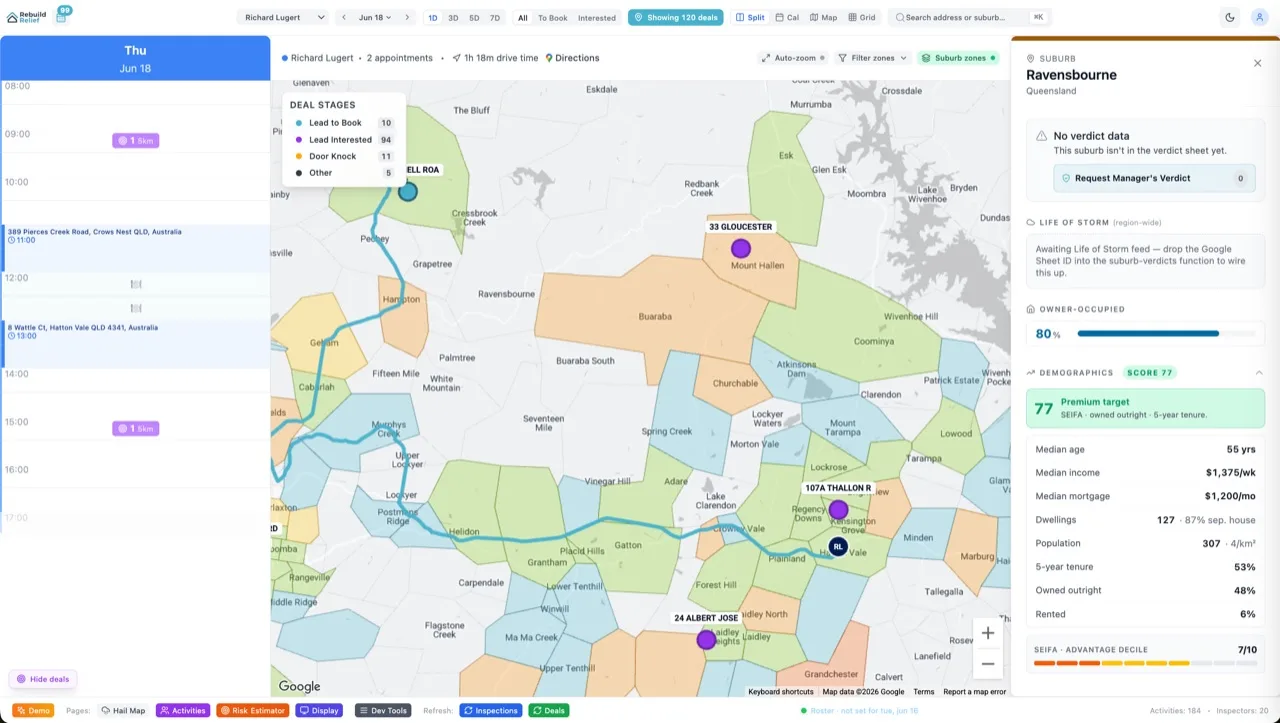
At Aidxn, we made a hard rule: no full-screen modals for data entry. Ever. Desktop gets right-docked side panels (smooth slide-in from the right), mobile gets bottom sheets with 3 snap points, and both collapse into a dock so you can open multiple drafts side-by-side. TradePilot's position builder ships this. Velocity X dashboards ship this. It works.
Why Modal Dialogs Fail for Data Entry
A modal dialog (via Radix Dialog or shadcn Dialog) centers on screen, typically fullscreen or 90vw wide, with a backdrop blur. It kills context: the user sees the form and nothing else. If they're entering a product SKU and need to reference the SKU list behind the dialog, they either memorize it (bad UX) or close the form, lose their draft, open the list, then reopen the form (no drafts survive). Worse: most modals have a single-column layout, so long forms scroll vertically, burying the submit button or causing thumb-strain on mobile. And there's no visual affordance to keep a form open *alongside* the data — it's all-or-nothing.
The three failures: Context loss (can't see your table while editing), No draft persistence (close = lose data), Scroll trap (long forms hide inputs or buttons). Side panels solve all three by staying anchored to the viewport edge, letting you see your source data and drafts simultaneously.
The Side Panel Anatomy — Desktop + Mobile
Desktop: A fixed-width drawer (typically 400–500px) docked to the right edge, overlaying content slightly but not blocking it entirely. It slides in from the right when triggered and slides out when dismissed. Mobile: The same drawer becomes a bottom sheet with three snap points (collapsed peek, half-height, full-height), so users can adjust it without closing. Both versions support a dock at the bottom-right corner where you can collapse panels and open multiple drafts.
The anatomy breaks into: Header (title + close button), Body (form fields, scrollable), Footer (submit button, optional secondary actions), and optionally a Dock (collapsed tabs of open panels). The panel is `position: fixed` with right: 0 (desktop) or bottom: 0 (mobile), never blocking the main layout but sitting on top of it.
Desktop Drawer — Radix Dialog with Slide Animation
Start with shadcn Dialog (which wraps Radix). Override the CSS to dock it right instead of centering:
// src/components/SidePanel.tsx
import { Dialog, DialogContent, DialogHeader, DialogTitle } from '@/components/ui/dialog';
import { X } from 'lucide-react';

export function SidePanel({
  open,
  onOpenChange,
  title,
  children
}) {
  return (
    <Dialog open={open} onOpenChange={onOpenChange}>
      <DialogContent className="fixed right-0 top-0 h-screen max-w-md rounded-none border-l bg-white p-0 shadow-lg">
        <DialogHeader className="border-b p-4">
          <DialogTitle className="text-lg font-semibold">{title}</DialogTitle>
        </DialogHeader>
        <div className="overflow-y-auto p-4 pb-24">
          {children}
        </div>
        <button
          onClick={() => onOpenChange(false)}
          className="absolute top-4 right-4 text-gray-500 hover:text-gray-900"
        >
          <X size={20} />
        </button>
      </DialogContent>
    </Dialog>
  );
}
Key overrides: `fixed right-0 top-0` pins it right, `h-screen` makes it full height, `max-w-md` constrains width to 400px, `rounded-none` kills corner radius (side panels are edge-to-edge), `border-l` adds a left border to visually separate it from content. The `pb-24` in the body gives space for a sticky footer button. Add a slide-in animation via GSAP or Framer Motion — the goal is: feels native, doesn't jank, responds instantly to open/close.
Mobile Bottom Sheet — 3 Snap Points
Mobile flips the dock orientation. Use Radix Dialog again but style it as a bottom sheet with snap-points. Libraries like `react-spring` or `framer-motion` handle the snapping, but a simpler approach is CSS `scroll-snap-type`:
// Mobile bottom sheet with snap points
<Dialog open={open} onOpenChange={onOpenChange}>
  <DialogContent className="fixed bottom-0 left-0 right-0 h-[90vh] rounded-t-2xl border-t bg-white p-0 shadow-lg">
    <div className="h-1 w-12 mx-auto mt-2 bg-gray-300 rounded-full" />
    <DialogHeader className="border-b sticky top-12 p-4 bg-white">
      <DialogTitle>{title}</DialogTitle>
    </DialogHeader>
    <div className="overflow-y-auto snap-mandatory snap-y">
      <div className="h-screen snap-start">
        <!-- Peek view: title + close -->
      </div>
      <div className="h-screen snap-start">
        <!-- Half-height: form preview -->
      </div>
      <div className="h-screen snap-start">
        <!-- Full-height: full form + submit -->
      </div>
    </div>
  </DialogContent>
</Dialog>
The three snap points divide the sheet into thirds: collapsed (shows header only, swipe down to close), half-height (form preview, see table below), full-height (complete form, submit button in footer). The `snap-mandatory snap-y` classes let the browser handle physics — no manual drag logic needed. Add a drag handle (the gray bar at the top) so mobile users understand they can swipe. On desktop, never show the snap UI; that bottom sheet CSS never runs.
The Dock — Managing Multiple Drafts
Once you can keep a panel open, the next question is: what if the user needs two open at once? E.g., editing a trade while reading the news, or editing a position while checking the bull/bear case. The dock lives in the bottom-right corner as a fixed row of collapsible tabs. Clicking a tab swaps the panel content. Closing a tab removes it from the dock and the panel collapses. TradePilot's dock shows 3–4 open panels as tabs; clicking one brings it to focus.
// Dock component managing multiple open panels
<div className="fixed bottom-6 right-6 flex gap-2 z-40">
  {openPanels.map((panel) => (
    <button
      key={panel.id}
      onClick={() => setActivePanelId(panel.id)}
      className={`px-3 py-2 rounded-lg border text-sm font-medium transition ${
        activePanelId === panel.id
          ? 'bg-primary text-white border-primary'
          : 'bg-white border-gray-300 hover:border-gray-500'
      }`}
    >
      {panel.title}
      <button
        onClick={(e) => {
          e.stopPropagation();
          removePanelFromDock(panel.id);
        }}
        className="ml-2 text-xs"
      >
        ×
      </button>
    </button>
  ))}
</div>
The dock is a visual hub: each tab is a mini-button showing the panel title and an × to close. Clicking the tab brings that panel's content into the main side-panel view. This pattern scales: if you have 10 open panels, the dock scrolls horizontally. The key insight is that panels don't close, they dock — so draft data persists in Zustand or React Context until the user explicitly closes the tab.
Six FAQs
Why not use Radix Sheet or Dialog?
Radix Dialog is centred by default; Radix Sheet (if it existed) would be a different primitive entirely. We override Dialog's styling to make it dock to the side. shadcn's Dialog wraps Radix, so we own the CSS. The rule: own your components so you can dock them where you want.
Doesn't a side panel waste space on desktop?
A 400px drawer on a 1920px screen leaves 1520px for your table. That's plenty. If you have a narrow screen (iPad in landscape), you'd switch to a bottom sheet (same mobile logic). The tradeoff is worth it: keeping context visible is more valuable than reclaiming 20% of horizontal space.
How do you handle form submission in a side panel?
Submit button lives in a sticky footer inside the panel. On mobile, it's always visible (sticky or floated to the bottom). On desktop, it's at the end of the scrollable content. Use React Hook Form to manage form state; the panel and form are decoupled, so submitting the form doesn't automatically close the panel — the parent component controls that via `onOpenChange(false)` after the submission succeeds.
What if the form is really long?
The panel body scrolls independently of the main page. If a form has 20 fields, users scroll within the panel. On mobile, the full-height snap point gives them the full viewport, so long forms don't feel cramped. If a form is SO long that even fullscreen feels restrictive, consider breaking it into tabs or multi-step flows inside the panel.
Can I use side panels for read-only info?
Absolutely. Product details, news feed, bull/bear case analysis — anything that needs persistent visibility while you work. TradePilot's news panel, analytics panel, and case panel all follow this pattern. The dock lets you open multiple read-only panels and switch between them.
How do you prevent the panel from blocking critical UI?
Z-index management. The panel is `z-50` (behind top-level modals like alerts, but in front of dropdowns and tooltips). If you have a sticky header in the main content, ensure it's `z-40` so the panel overlay sits on top. Use a stacking-context map in your CLAUDE.md so every component knows its place. At Aidxn, this lives in `docs/claude/CONVENTIONS.md`.
The Bottom Line
Modal dialogs are the enemy of data-entry UX. They kill context, destroy drafts, and leave users scrambling to keep their place. Side panels (right-docked on desktop, bottom-sheet on mobile) solve this by keeping your data and your work visible simultaneously. Add a dock for multi-draft workflows, and you've got a system that scales from simple forms to complex dashboards. Pair this pattern with shadcn Dialog as your foundation and your UX will feel 3× more native than anything using fullscreen modals. See production dashboards built with this pattern and you'll understand why every new Aidxn project starts with side panels, not dialogs.